
Free Online Screen Test & Monitor Test
28 free display tests that run in your browser: dead pixels, backlight bleed, refresh rate, PWM flicker, HDR and more. Nothing to install, no account.
Quick full-screen colors
Tap a color to fill your screen instantly. Use ← / → to switch, Esc to exit.
Panel & Backlight





Color & Calibration




Motion & Timing

Fun & Utilities

What's wrong with my screen?
Find what you're seeing, run the matching screen test, then read what the result means.
A dot that stays one color
Glow along the edges in a dark room
Patchy or uneven brightness
Run the Brightness Uniformity Test →Guide: Checking a TV for defects
A faint ghost of an old image on an OLED
A 144 Hz monitor that feels like 60
Smears trailing behind moving objects
The picture splitting sideways in games
Run the Screen Tearing Test →Guide: V-Sync, G-Sync, FreeSync
Tired eyes when the brightness is low
Halos around bright objects on black
Grey, washed-out blacks
Thin lines running across the screen
Stripes where a gradient should be smooth
Normal, or worth returning?
Most panels have small quirks. Here's how to tell them apart from real defects.
Tests for newer screens
HDR, Mini-LED, OLED and high-refresh panels fail in ways a solid color can't show.
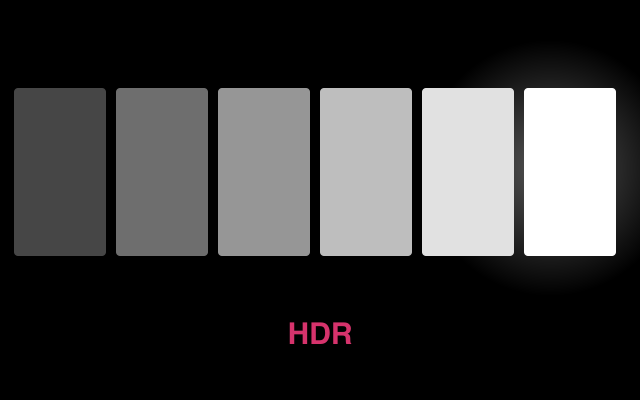
HDR Test
A real HDR image with brightness steps up to 1,600 nits, so you can see where your screen stops getting brighter.
PWM Flicker Test
Catch a flickering backlight with the pencil test, or a fast line that splits into copies on PWM-dimmed screens.
Wide Color Gamut (P3) Test
Logos hidden in Display P3 colors only appear if both your screen and your browser go beyond sRGB.
Frame Skipping Test
One cell lights per frame. Photograph it to find out whether an overclocked monitor quietly drops frames.
Blooming zone sweeps
Count how often the halo jumps as a square crosses the screen to estimate a Mini-LED's dimming zones.
Panning grey
Drifting grey bands that expose the dirty screen effect large TVs show when the camera pans.
Testing a specific device?
Step-by-step walkthroughs for laptops, phones, TVs and monitors.
Any new screen: the 10-minute checklist
Seven checks in order, from dead pixels and dark-screen defects through motion and viewing angle, and what counts as a defect.
Laptops
A 60-second pixel check, plus the things that look like dead pixels on a laptop but aren't, such as corner glow and lid pressure marks.
Secondhand phones
What to check before you hand over money: retained images on OLED, areas that ignore touch, a replacement panel, and flicker.
TVs
Get a test pattern up with the TV's browser or your phone, then judge pixels and uniformity from where you actually sit.
Monitors, in the store and at home
What you can check before paying, what to run on day one, and the red flags worth a return, the cable included.
Which panel type?
TN, IPS, VA and OLED compared on color, contrast, speed and viewing angle, with a pick for gaming, work and movies.
Before you test
A minute of setup makes every result easier to trust.
Let it warm up
A cold panel's brightness and color drift slightly at first. Give it about five minutes before testing, and 20–30 minutes before calibrating.
Switch off the filters
Night Light, Night Shift, True Tone, dynamic contrast and eye-care modes all change what you see. Turn them off for color and greyscale checks.
Dim the lights
Bleed, blooming and black-level tests need a properly dark room. Everything else works best dimly lit, with no reflections on the glass.
Use the native resolution
A scaled resolution softens fine detail and can blur a single bad pixel into its neighbors. Set your system to the panel's native resolution.
Fill the whole screen
Browser bars and the taskbar cover the edges, which is where bleed and dead pixels like to hide. Every test has a full-screen Start button.
Photograph what you find
Lock your phone camera's exposure, shoot in a dark room and note the date. That photo is your evidence for a return or warranty claim.
Questions
Is BestScreenTester free?
Yes. Every test is free to use, with no account and nothing to download. The site is supported by ads and donations.
Is anything uploaded when I run a test?
No. Your browser draws the test patterns on your own device, and nothing about your screen is sent anywhere. Like most websites, the site uses analytics and ads; the Privacy page lists what they collect.
Do the tests work on phones and tablets?
Yes, in any modern mobile browser. iPhone Safari doesn't let websites go truly full-screen, so there a test fills the browser window instead. The Touch Screen Test is built specifically for phones and tablets.
Can a browser test be accurate?
For defects you can see, yes: a full-screen solid color shows a dead pixel or backlight bleed just as clearly as dedicated software would. Measurements such as Delta E, brightness in nits or contrast ratio need a colorimeter; these tests show what those problems look like, not the numbers.
How many dead pixels are acceptable?
It depends on the manufacturer's pixel policy. One dark pixel often falls within the allowance, while bright pixels and clusters are treated more strictly. Inside the retailer's return window you usually don't need to argue about counts at all.
Which test should I run first on a new screen?
The Dead Pixel Test. Then check for bleed on black, uniformity on grey and banding in the gradients, and on a monitor or TV finish with the refresh rate. The new-device checklist in our guides walks through the full order.
Who makes BestScreenTester
BestScreenTester is built and maintained by Nelera, currently a one-person operation. Every guide shows when it was last updated, and many link the standards and manufacturer documents they draw on.